-- Download How To Change Name Servers In Namecheap as PDF --
In this Tutorial we are going to learn How to Change Name Servers with Namecheap?
What are NameServers ?
Nameservers are part of DNS, which stands for “Domain Name System.”
it converts a domain name, such as “www.example.com,” to a machine-readable IP address, such as “22.231.113.64.”Most nameservers provided by hosts look something like ns1.yourhostdomain.com. You’ll normally be given two different nameservers. Setting up nameservers usually only takes a few seconds once you have the right information.
we are using Liquid Web servers.
The Liquid Web Name Servers (NS) are:
ns.liquidweb.com
ns1.liquidweb.com
Why we are change Name Servers? What is the purpose?:
Nameservers are provided by web hosts, and they’re key to your website being visible on the web.The most important function of DNS servers is the translation (resolution) of human-memorable domain names and hostnames into the corresponding numeric Internet Protocol (IP) addresses.
The second principal name space of the Internet which is used to identify and locate computer systems and resources on the Internet.
Prerequisites:
Process:
- Sign into your Namecheap account
The Sign In option is available in the top hat of the page.
You can find login details for namecheap account in lastpass.
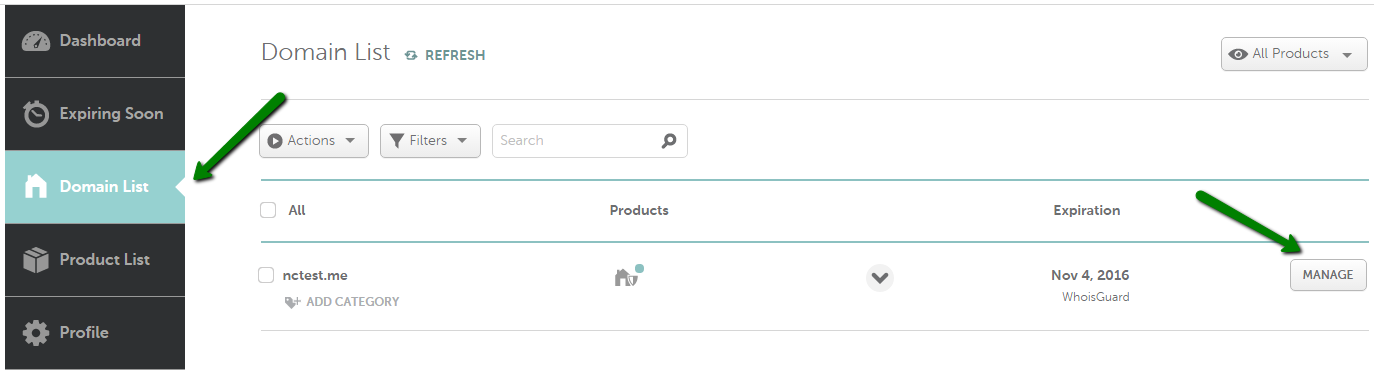
- Select Domain List from the left sidebar and click the Manage button next to your domain:
- Find the Nameservers section and select Custom from the drop down menu.
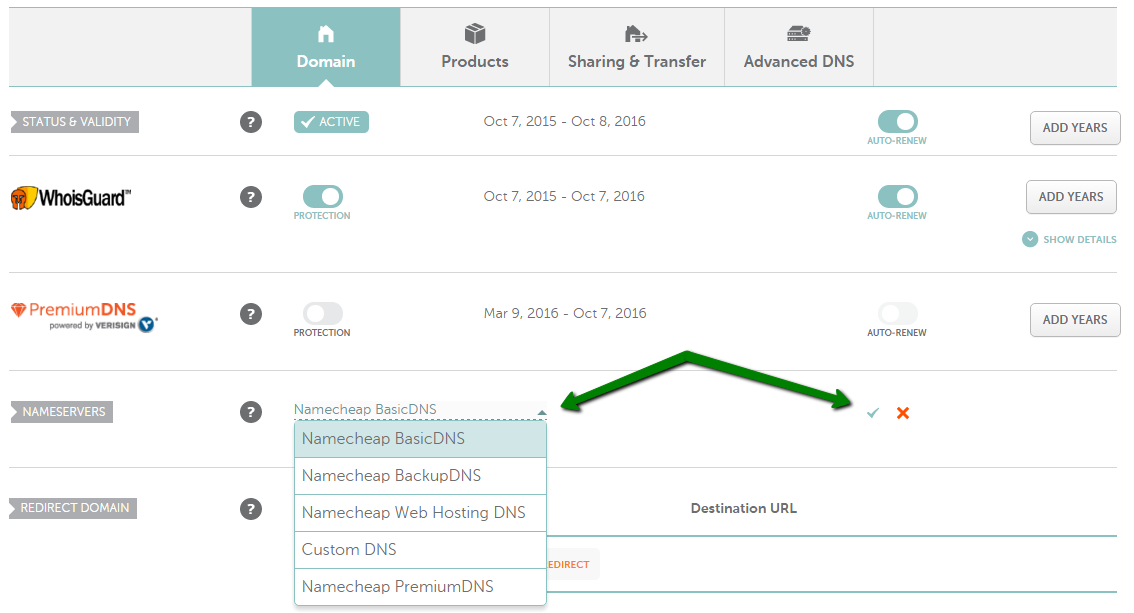
Enter your name servers that is
ns.liquidweb.com
ns1.liquidweb.com on the dotted lines.
Click Add Name server if you have more than 2 name servers.
- Click the check mark in the edited section to save your changes.
Testing or What can go wrong?
Check Whether you have entered correct Nameservers
Is wrong check again for above steps.